

Field notes / The research library
Automatically forward selected newsletters from Gmail
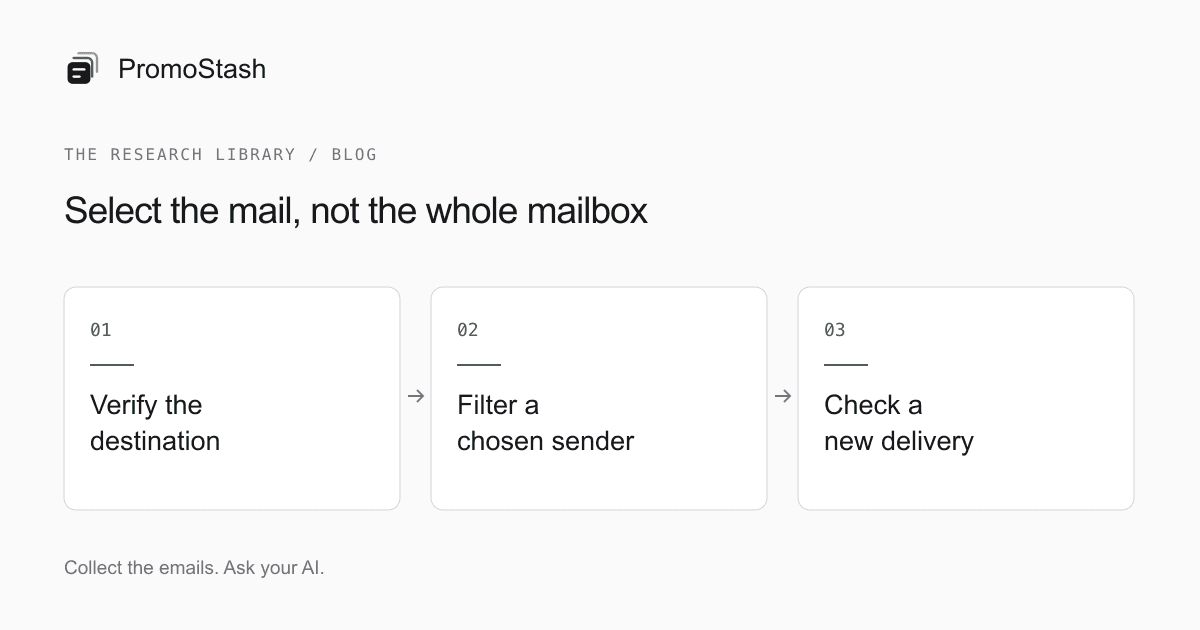
To automatically forward newsletters from Gmail, verify a destination address and create filters for the senders you want. Leave account-wide forwarding disabled if you only want selected mail. With PromoStash Pro, that destination can be your private research inbox; you do not need to grant PromoStash permission to read Gmail.
On this page
Before you start
Use Gmail on a computer for this setup. Copy the real receiving address from your PromoStash account; example addresses in articles are not working inboxes. Forwarding into PromoStash is a Pro feature. For new subscriptions, you can instead use the capture address directly on the brand’s signup form and avoid a forwarding rule altogether.
Decide which newsletter belongs in the archive before changing settings. A brand may send marketing, receipts, security alerts, and customer support from different addresses. Start with one known marketing sender. Review several of its messages so the filter matches the content you intend to save.
If you are still deciding what to collect, start with the competitor-email capture checklist. If you are deciding where research should live, the Gmail vs PromoStash comparison explains when labels in your existing mailbox may be sufficient.
1. Verify your PromoStash address in Gmail
- Open Gmail settings, then See all settings.
- Open the Forwarding and POP/IMAP tab, or the Forwarding tab if that is the label shown.
- Choose Add a forwarding address, paste your PromoStash address, and confirm.
- Open the verification message in PromoStash and verify only the request you initiated.
- Return to Gmail settings. Keep account-wide forwarding disabled for this selected-newsletter setup.
Google documents verification and the difference between all-mail forwarding and filtered forwarding in its official forwarding instructions (opens in a new tab). Adding a destination and verifying it is separate from choosing which mail to forward.
Treat the verification email like a security message. Check that you initiated it and that it refers to the intended Gmail account. Do not approve an unexpected request. If the message does not appear, recheck the copied address and your PromoStash usage before making repeated requests.
2. Create a filter for one marketing sender
Inspect an existing newsletter’s sender address, not just its display name. Two messages labelled with the same brand can come from different addresses. Start with the address used for the newsletter you actually want, then expand only if you discover another relevant marketing stream.
from:newsletter@brand.example- Open Gmail’s search options and enter the newsletter sender in From.
- Run the search and inspect the matching messages.
- Return to the search options, choose Create filter, and select Forward it to your verified capture address.
- Create the filter. Leave Delete it unchecked while you are testing.
Google’s filter documentation (opens in a new tab) confirms that forwarding filters affect new messages. A filter is not a historical migration. You can use Gmail search operators (opens in a new tab) to investigate the selection, but do not paste those operators into PromoStash’s different search interface.
Keep the first rule narrow enough that you can explain exactly what it matches. A domain-wide rule may include receipts or support correspondence. A category-wide rule can sweep in unrelated brands. Both can create unnecessary copies of mail and consume the archive’s brand and storage allowance.
3. Test a new matching message
Wait for the next newsletter from the selected sender, or use a separate address you control for a temporary test rule. Reopening an old message is not a test of future delivery. Check both Gmail and PromoStash so you can distinguish a filter problem from a message that has not arrived at all.
- Confirm the new message matches the exact sender criteria.
- Find it in PromoStash and check the subject, sender, and date.
- Open both the text and HTML views if the message contains a layout you want to study.
- Check that unrelated messages have not appeared in the archive.
- Keep Gmail’s original while validating the transfer.
A plain inline forward can store you as the outer sender and include a forwarding wrapper in the body. For old messages where original metadata matters, prefer EML attachments or an MBOX import. The archive records what it receives; it does not intelligently reconstruct every forwarding format or conversation.
Once the test works, add another specific sender only if you need it. Keep a short list of active rules in your own notes. It is easier to review five deliberate subscriptions than to diagnose a broad filter months after creating it.
Older newsletters need an import, not a new rule
Setting up future forwarding does not populate an empty archive with last year’s newsletters. For existing mail, choose a small batch and use the Gmail EML and MBOX import workflow. That guide covers original-message attachments, bounded uploads, and duplicate handling.
This distinction matters when interpreting the archive. If the first captured newsletter is from today, an empty search for last November does not mean the brand sent no November promotions. It means that period is not yet represented in your saved messages. Keep capture dates and imported ranges in your research notes.
Troubleshoot the smallest part first
| Symptom | What to inspect |
|---|---|
| No verification message | Copied destination, account usage, and whether the request was actually sent |
| Destination is unavailable in the filter | Whether verification finished; refresh Gmail settings |
| Old mail did not transfer | Use an import; test forwarding with a newly received message |
| One brand arrives, another does not | Each actual sender address and its own filter criteria |
| Unrelated emails appear | Account-wide forwarding and overly broad rules |
| Messages stop appearing in PromoStash | Plan status, storage and brand limits, then the forwarding rule |
If something fails, keep the originals and change one condition at a time. Do not repeatedly forward an entire mailbox as a diagnostic step. Compare an expected message’s sender with the rule, confirm that the destination is still correct, and verify your plan’s usage before broadening the filter.
Do not depend on forwarding for critical communications. A marketing archive is designed for references, not emergency alerts, backups, or legal retention. If a message contains confidential information, stop and reconsider whether it belongs in this workflow at all.
Review and stop forwarding when the project changes
At the end of a research project, review which senders still deserve space. In Gmail’s Filters and Blocked Addresses settings, edit or remove the relevant rule. Also inspect account-wide forwarding if you enabled it separately. Removing a forwarding rule stops that route for future messages; it does not remove copies that have already been saved elsewhere.
Use a collection for the examples you want to keep returning to, and leave ordinary messages in their brand history. The email swipe-file guide provides a simple collection structure and a review routine. The point of automatic capture is to make useful research easier, not to create an inbox you must constantly clean.
Common questions
Does PromoStash need Gmail OAuth for forwarding?
No. You configure the destination and filter in Gmail. PromoStash receives forwarded messages rather than requesting permission to read your mailbox.
Will this forward all my Gmail messages?
Only if you enable account-wide forwarding or use an overly broad rule. For this workflow, keep account-wide forwarding off and test a filter for one specific newsletter sender.
Can I use forwarding on PromoStash Free?
Forwarding is a Pro feature. Free accounts can begin by subscribing to brands directly with their private capture address.
Sources and editorial notes
Public sources checked September 6, 2026. Product interfaces and terms can change. PromoStash features and limits were checked against this application’s implementation.
- Google: automatically forward Gmail messages (opens in a new tab)
- Google: create rules to filter your emails (opens in a new tab)
- Google: refine searches in Gmail (opens in a new tab)