

Field notes / The research library
Import Gmail emails into a swipe file with EML or MBOX
You can import Gmail emails into a swipe file without connecting your Google account. For a few messages, download EML files or forward them as attachments. For a selected archive, use an MBOX file from an export. PromoStash Pro supports both formats in small batches; it is not currently a large-mailbox migration service.
On this page
Choose the smallest useful transfer
| Starting point | Use | Watch for |
|---|---|---|
| One newsletter | Download its EML file and upload it | Keep original message headers intact |
| A handful of messages | Forward as attachments to your Pro capture address | Attached-message and total-size limits |
| An existing selected archive | Upload a small MBOX file | Both the byte limit and message-count limit |
| A full multi-year mailbox | Prepare smaller research-only batches first | Large-file processing is not supported in this version |
Start with messages relevant to an actual brief. An import is a chance to select useful history, not a reason to transfer all your personal correspondence. Search for one newsletter sender or use a label you have already reviewed. Check the selected messages for receipts, account messages, and private conversations before exporting.
If you have not decided what belongs in the library, read the competitor-email collection guide. A clear source list makes the transfer easier to inspect and reduces the chance of filling your plan with brands you did not intend to track.
Option 1: download or forward original EML messages
On a computer, Gmail’s message menu offers Download message. For several messages, select them in the list and use Forward as attachment from the More menu. Gmail packages attached messages as EML files. See Google’s attachment instructions (opens in a new tab) for the current interface.
- Choose a few marketing messages whose sender and dates you recognize.
- Download an EML file for upload, or attach selected messages to a forward addressed to your private PromoStash inbox.
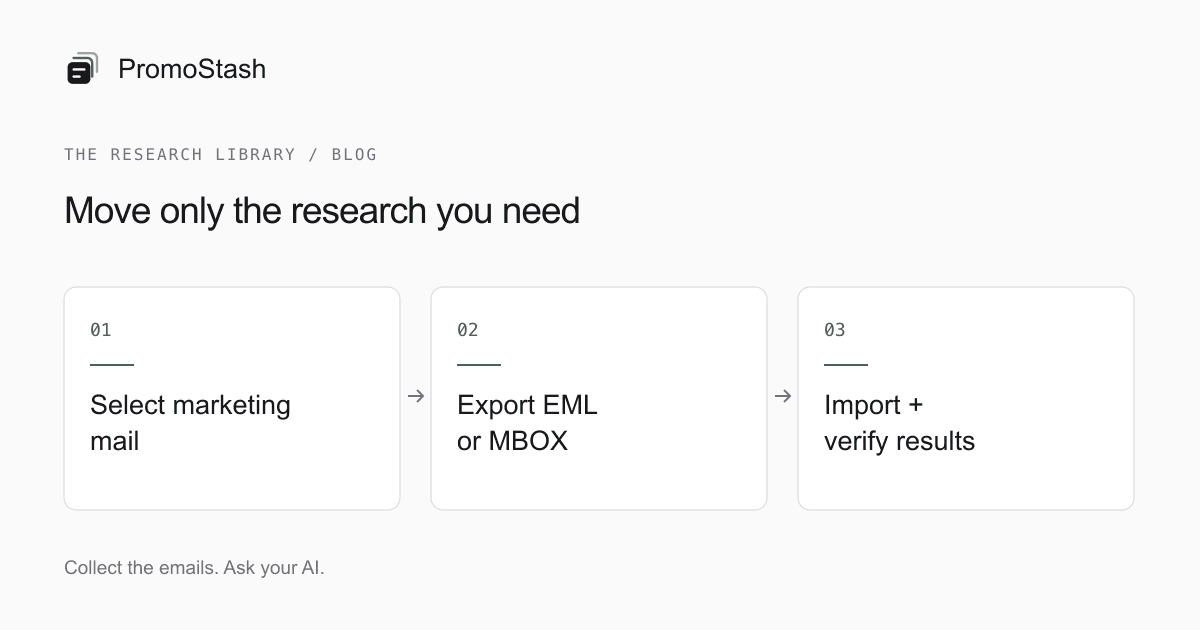
- For uploads, open Import in PromoStash and choose the EML file.
- For an attachment forward, send it from your existing mail app and check the saved messages in PromoStash.
- Verify that each saved email has the expected original subject and sender.
Forward as attachment is different from placing a quoted message inside a new email body. An inline forward can preserve your forwarding address as the outer sender. The original EML gives the parser a separate email to read. PromoStash detects attached EML messages and imports those as individual entries rather than treating the wrapper as a campaign.
Do not edit the From, Date, or Message-ID headers to make a file look tidier. Those fields help preserve identity and chronology. Renaming the file is different from changing its contents. If you need to correct the displayed brand label after import, use the brand’s rename control instead of altering the source message.
Option 2: prepare an MBOX archive from Gmail
Google supports exporting Gmail data (opens in a new tab), including message content and headers. Use Google Takeout (opens in a new tab) to prepare the export. Select Mail rather than exporting unrelated Google products, and review the available selection controls to keep the archive focused on research.
Takeout commonly delivers a compressed download containing your mail data. Extract the download locally and locate the MBOX file; PromoStash accepts the mail file itself, not a ZIP archive or a link to a cloud download. Keep the original export separately while you work with a small import batch.
- Review the messages or research labels you intend to export.
- Create the Mail export in Google Takeout and wait for the download to become available.
- Extract it locally, find the MBOX data, and check its size before uploading.
- If the file exceeds PromoStash’s limits, prepare smaller message-preserving batches with a trusted local mail tool, or use a few EML files instead.
- Upload a small batch in PromoStash’s Import screen and inspect the report.
An export is a snapshot, not a continuing connection. Later messages will not appear in a downloaded file automatically. Once your useful history is in place, use the Gmail newsletter-forwarding setup or subscribe directly with your capture address for future arrivals.
Check current limits before preparing a large export
| Limit | Current value |
|---|---|
| Upload formats | EML and MBOX |
| Upload size | Up to 4 MB (4,000,000 bytes); aim below the limit |
| Messages in an MBOX upload | Up to 100 |
| Attached EML messages in one forwarded message | Up to 20 |
| Raw email size for parsing | Up to 8 MB, including its message content |
| Plan requirement | Pro, with available brand and email storage |
File size and message count are separate checks. A file can fit under the byte limit but contain too many messages, or contain very few emails with large attachments. The total size of a forwarded message includes its wrapper and encoding overhead, so leave room rather than treating the raw limit as an attachment allowance.
The current importer also has a request-time budget. A report can show saved messages and remaining work instead of an all-or-nothing completion. Read the result before retrying. Keep batches small enough to review, and never assume that selecting a file means every message was accepted.
Understand what the importer preserves
- Sender and recipients, subject, and a date when the original message provides one.
- Sanitized HTML and a text version for reading and keyword search.
- A bounded set of headers and extracted web links.
- Attachment metadata, not a general-purpose binary attachment backup.
- Message identity used to identify repeated imports within your account.
Brand grouping is derived from the parsed sender domain. An original EML usually provides a better basis for this than an inline forward, where the outer sender may be you. Review imported brands and rename unclear labels. The product does not automatically reconstruct every sender relationship or classify the campaign’s purpose.
A Gmail export can include label information, but PromoStash does not automatically turn Gmail labels into collections. After verifying the import, create manual collections for the references you need. The email swipe-file structure guide provides a small starter set tied to creative tasks.
Saved HTML is sanitized for safety, and the viewer blocks remote images by default. Images or links may depend on the original sender’s servers and can become unavailable. An imported email is a research reference, not a guarantee that its artwork, offer, or attachment will remain accessible forever.
Read the report and handle duplicates carefully
PromoStash checks message identity within your account before storing an email. Re-uploading an unchanged source file should skip messages already saved. When an original Message-ID is unavailable, the fallback uses sender and message content with the date. Different forwarding wrappers or altered source data can therefore look like different messages.
Do not rely on deduplication as a semantic ‘same campaign’ detector. Two emails with slightly different content, recipients, or identities may legitimately be distinct deliveries. A safe transfer keeps the original files intact and uses the import report to distinguish imported, duplicate, failed, and remaining messages. Review the PromoStash import feature and limits before preparing a batch.
After each batch, open an early, middle, and late message from the source set where practical. Check the sender, subject, date, and body. For anything important to your research, inspect it directly rather than relying only on counts. Keep your originals until the result is satisfactory; PromoStash does not currently provide a complete original-file export workflow.
Common questions
Can I upload a multi-gigabyte Gmail backup?
Not in the current version. Use the limits above to prepare small EML or MBOX batches. Large-file, background migrations are not available.
Does importing delete mail from Gmail?
Uploading a downloaded file to PromoStash does not delete the source mailbox. Keep your originals while checking the result, and treat any later cleanup as a separate decision.
Will Gmail labels become PromoStash collections?
No. Import preserves supported message fields; collection membership is manual. Create collections after you have verified the imported emails.
Sources and editorial notes
Public sources checked September 6, 2026. Product interfaces and terms can change. PromoStash features and limits were checked against this application’s implementation.
- Google: download and send emails as attachments (opens in a new tab)
- Google: export your data from Gmail (opens in a new tab)
- Google: download your Google data (opens in a new tab)